

Comparative Insights on Modern Project Management Tools — Practical Lessons from I-BACUS TECH.
In today’s fast-paced business environment, managing multiple projects, clients, and internal operations demands clarity, structure, and real-time visibility. At I-BACUS Tech, our teams constantly explore digital tools that enhance productivity and streamline project tracking. To identify the most efficient solutions, we analyzed four widely used tools — Smartsheet, Asana, ClickUp, and Google Sheets — each offering unique approaches to timeline visualization, collaboration, and workflow automation. This article consolidates our findings, experiences, and real-world use cases to help professionals and organizations choose the best fit for their project management needs.
Smartsheet — The Power of Spreadsheets with Project Intelligence
Smartsheet combines the familiarity of Excel with advanced project-tracking intelligence. It’s designed for professionals who prefer structured data but want real-time collaboration, automation, and dynamic visualization. The grid interface allows teams to manage projects phase-by-phase with assigned owners, start and end dates, dependencies, and progress percentages.
At I-BACUS Tech, Smartsheet was tested for managing a three-phase client project involving Power BI dashboard development. The Gantt (timeline) view helped visualize overlaps between design, development, and QA testing. When one task extended, Smartsheet automatically adjusted dependent tasks and updated the overall project schedule — improving transparency with our client.
Its strength lies in its structured timeline control and automation. For instance, automated reminders ensured QA deadlines were never missed, while team members could collaborate through inline comments and attachments.
Real-Time Use Case
At I-BACUS-TECH, we experimented with Smartsheet to manage a three-phase client project:
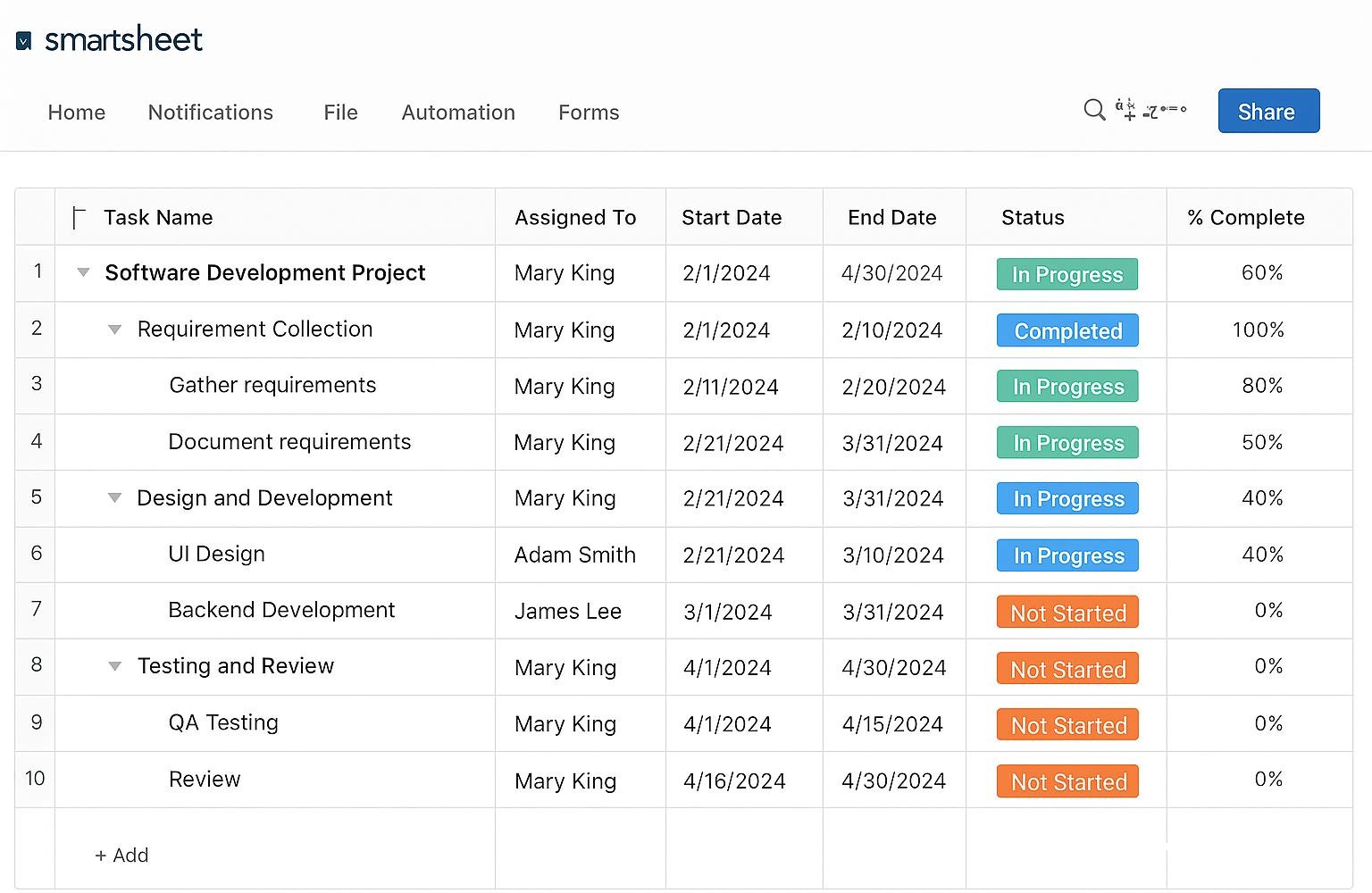
- Phase 1: Requirement Collection – All tasks were listed under the Initiation section, assigned to respective team members.
- Phase 2: Design and Development – The Gantt (timeline) view helped visualize overlaps between UI design and backend development tasks.
- Phase 3: Testing and Review – Automated reminders helped the QA team stay aligned with deliverable dates.
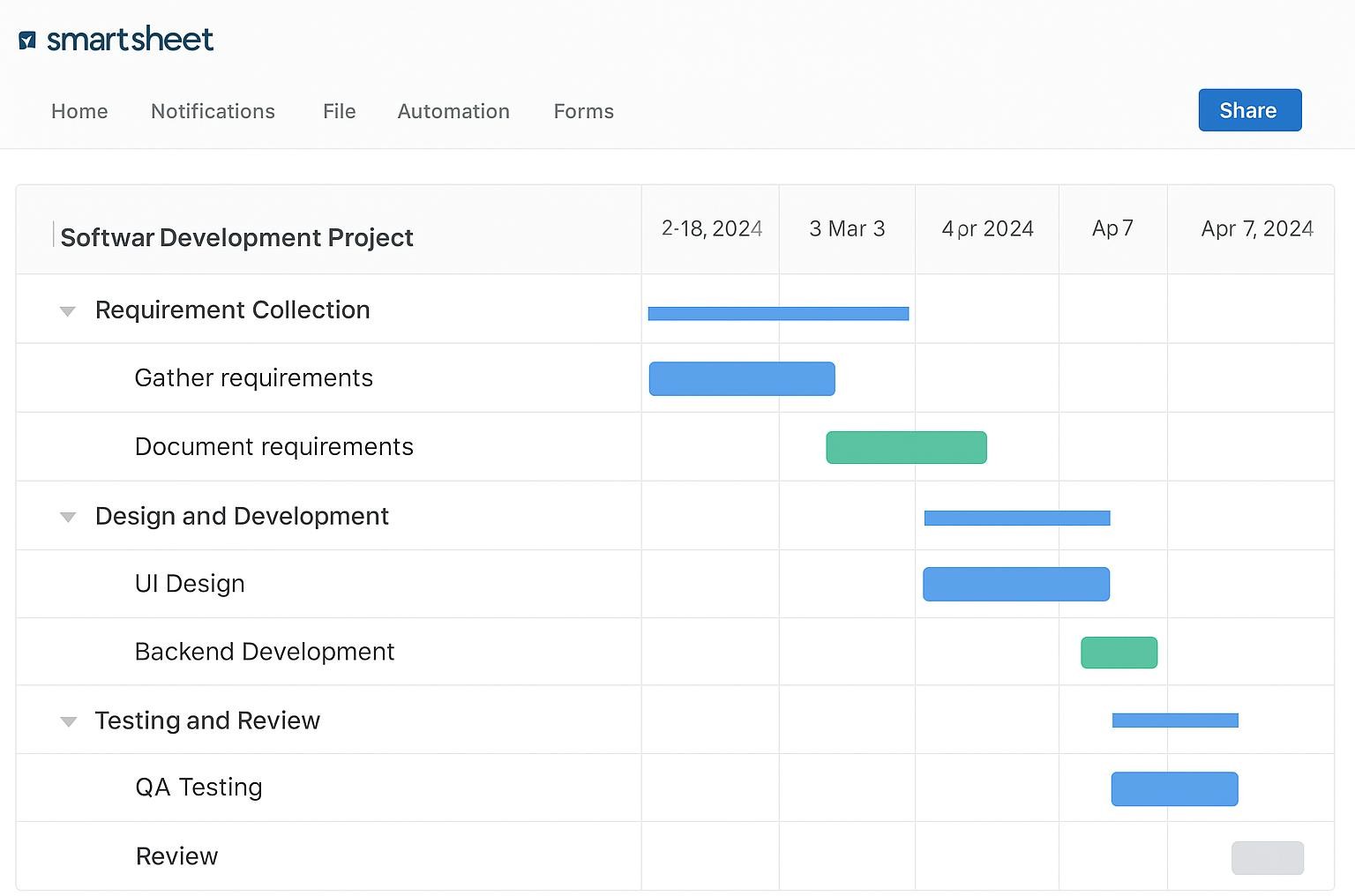
The timeline view was particularly useful for tracking delays. For instance, when the design stage extended by three days, Smartsheet automatically adjusted dependent tasks in the chart. This visibility helped us communicate revised timelines to the client quickly and confidently.
| Function | Example Use Case | Key Benefit |
| Project Management | Tracking project phases, tasks, and dependencies | Unified timeline with accountability |
| Function | Example Use Case | Key Benefit |
| HR Management | Recruitment tracker, onboarding status sheet | Streamlined process and automated reminders |
| Sales G Marketing | Lead tracking and campaign calendar | Timeline-based visibility on follow-ups and launches |
| Development | Product or software sprint scheduling | Dependency management and cross-team coordination |
| Operations | Maintenance and task request forms | Centralized request and status management |
| Training G Education | Workshop schedule and attendance tracker | Resource planning and time tracking |
Simplified Project Scheduling
Smartsheet’s Project Schedule Management template provides a ready-to-use structure to organize every stage of a project — from initiation to closure. The layout includes columns for task name, assigned owner, start and end dates, dependencies, and progress percentage. For example, while planning a software development project, the manager can map tasks such as UI design, API integration, and testing phases in sequence. Each task can be assigned to specific team members, allowing them to update progress in real-time.
The biggest advantage is its spreadsheet-style flexibility. Managers familiar with Excel can adapt quickly without learning a new interface. Yet, unlike static sheets, Smartsheet supports live updates and dynamic dependencies, giving teams a visual understanding of ongoing progress.
Multi-Functional Use Across Departments
Smartsheet adapts well to different business functions, making it a universal collaboration tool across departments:
- Development Teams: Use Smartsheet to track sprint progress, backlog tasks, and issue resolution timelines. A software developer, for instance, can record module completion updates directly in the task sheet, enabling managers to view status without constant follow-ups.
- Sales and Marketing: Sales teams can organize lead follow-ups and deal closures while tracking client communication history. Marketing teams can plan campaign schedules with clear start and end dates, ensuring content, design, and outreach teams stay aligned.
- Human Resources: HR departments can manage recruitment pipelines, onboarding processes, and employee training schedules. For example, during mass campus hiring, HR can use Smartsheet to track candidate screening stages, interview rounds, and offer rollouts.
- Operations and Administration: Smartsheet helps manage logistics, vendor follow-ups, and facility maintenance. Operations managers can schedule recurring activities and attach relevant documents or invoices to each task for audit-ready records.
Real-Time Collaboration and Communication
Unlike standalone spreadsheets, Smartsheet supports real-time collaboration. Multiple users can view and edit the same sheet simultaneously, and every update is instantly visible to others. Comments, attachments, and automated notifications reduce email communication overload.
For instance, in a project review meeting, the team can directly tag the responsible person in a task comment — allowing quick clarification without switching platforms. The notification system ensures that no update goes unnoticed, helping maintain accountability throughout the team.
Timeline (Gantt) View and Visual Tracking
One of Smartsheet’s strongest project management features is the Gantt (Timeline) view. It transforms tabular task data into a visual schedule, allowing managers to see overlapping tasks, dependencies, and overall project flow.
During a Power BI dashboard project, the design team noticed delays in the data preparation phase. By viewing the Gantt chart, the manager identified the exact bottleneck and shifted dependencies accordingly. This visualization not only improved clarity but also minimized communication gaps across departments.
The color-coded progress indicators in the timeline view help differentiate completed, ongoing, and delayed activities, enabling a clear picture of project health at a glance.
Integration and Automation
Smartsheet’s paid versions offer seamless integrations with platforms such as Microsoft Teams, Google Workspace, Slack, and Outlook, enhancing workflow connectivity. For example, HR can automate reminders for training sessions directly through Outlook, while
Sales teams can link lead data from HubSpot into Smartsheet for schedule-based follow-ups.
Automation rules allow managers to send status alerts, approval requests, or reminders without manual effort. This is particularly useful in large-scale projects, where manual communication becomes difficult to manage.
Comparing Smartsheet with Other Tools
When compared to Asana, HubSpot, and GreenStep CRM, Smartsheet stands out for its structured scheduling approach. While Asana simplifies task assignment and board visualization, it lacks Smartsheet’s detailed date and dependency tracking. HubSpot and GreenStep CRM specialize in client relationship management and analytics but are not built for operational project tracking. Smartsheet bridges this gap by combining scheduling precision with collaborative flexibility.
Basic vs. Paid Version Experience
The basic version of Smartsheet provides access to essential features like task listing, comments, attachments, and a simple timeline view — ideal for testing internal projects. However, advanced automation, workflow integrations, and dashboard visualizations are locked behind the Business or Enterprise plans.
In daily use, the difference is visible. For example, while managing multiple college training projects, the basic version allowed progress tracking but not cross-sheet reporting. The paid version, on the other hand, can consolidate reports from various project sheets into a single dashboard — a critical feature for organizations managing multiple clients simultaneously.
Familiar Excel-Like Interface
The overall interface of Smartsheet mirrors the look of Excel, which reduces the learning curve for new users. It uses rows and columns to record data but adds advanced elements like checkboxes, dropdown lists, and automatic formula updates. This structure allows both technical and non-technical users to manage projects without specialized training.
The sheet supports multiple views — Grid, Gantt, Card, and Calendar — giving teams flexibility in how they prefer to track progress. For instance, a developer may prefer the Grid view for precision, while a marketing manager may choose the Calendar view for campaign deadlines.
Professional Insight
From a project manager’s perspective, Smartsheet performs exceptionally well in bridging traditional data management and modern project execution. It provides a unified platform where all stakeholders can collaborate, review, and act without depending on multiple tools.
Its primary strength lies in clarity and control — giving visibility into every task, timeline, and dependency. While it is not a free solution and becomes more functional in its paid version, Smartsheet remains a powerful tool for teams aiming to combine data discipline with real-time collaboration.
| Feature | Smartsheet | Asana | HubSpot | GreenStep CRM |
| Interface Style | Spreadsheet-like grid | Task boards & timelines | CRM dashboard | Analytics dashboard |
| Best For | Scheduling, dependencies, and task ownership | Workflow and task management | Lead management & communication | Reporting and performance tracking |
| Timeline View | Gantt-based, editable dependencies | Basic timeline (premium only) | No project timeline view | No visual scheduling |
| Automation | Available in paid version | Limited automation | CRM-based automation | Data-driven workflows |
| Cost Factor | Paid for automation and dashboards | Freemium with upgrades | Subscription-based | Enterprise setup |
| Feature | Smartsheet | Asana | HubSpot | GreenStep CRM |
| Ideal Users | Project managers and cross-functional teams | Creative teams and startups | Sales and marketing departments | Analytics and performance teams |
to be continued………