
Using Microsoft 365 Smartly: How the “Send Later” Feature Helps Me Communicate Across Time Zones
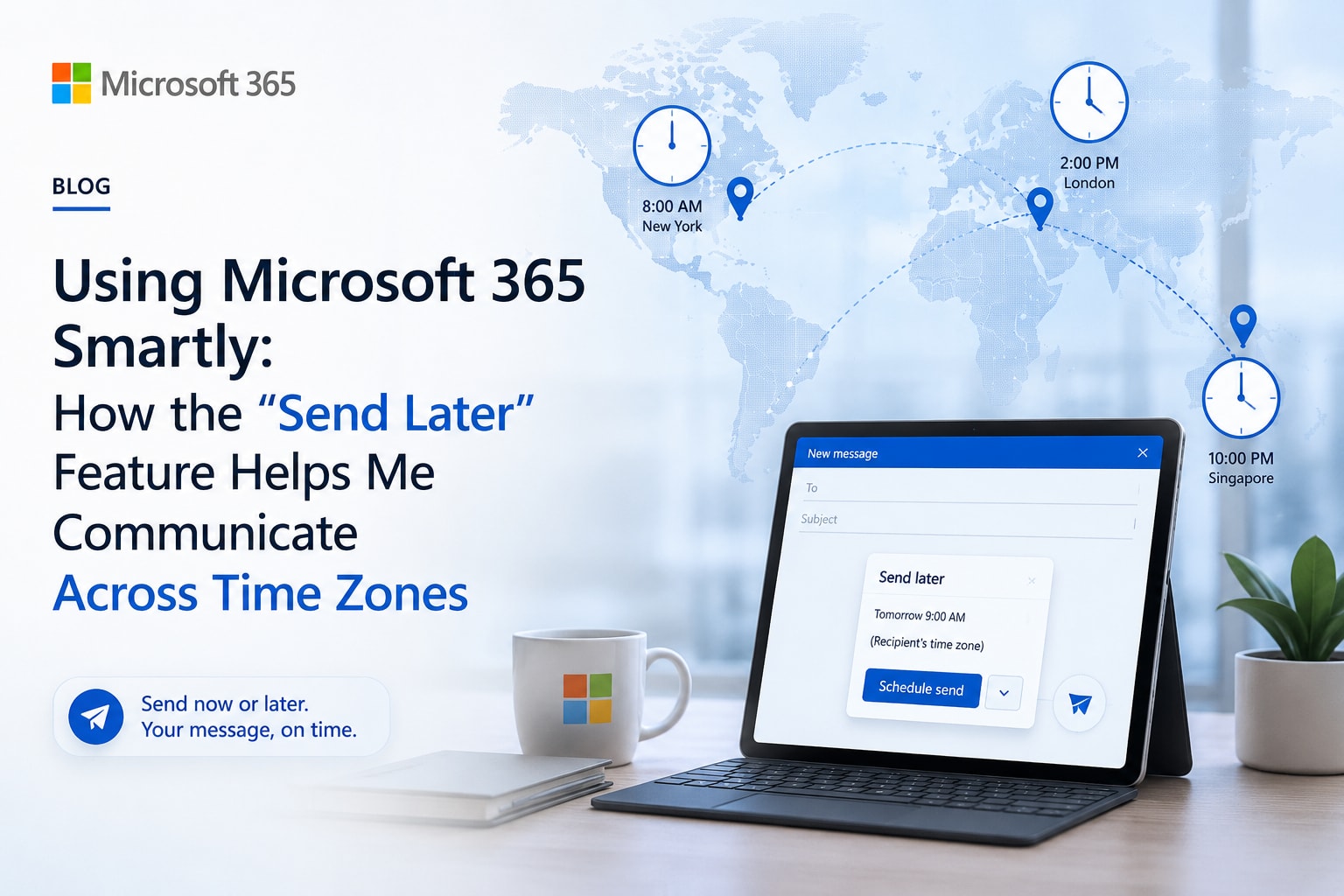
In a global work environment, time zones often create communication gaps. Sending an email at 4 PM in India might mean it lands in someone’s inbox at 3 AM in the United States — long before they start their workday. To solve this, I rely on one simple yet powerful feature in Microsoft 365

Outlook: “Send Later.”
This option allows me to schedule emails to be sent at a specific time, ensuring that they reach recipients during their active hours. It has helped me manage communication efficiently without staying online beyond my working hours.
Why I Started Using “Send Later”
At I-BACUS-TECH, my role often involves coordinating with clients, partners, and associates across different time zones, particularly in the U.S. Early on, I noticed that emails sent during my day often got lost by the time the recipients checked their inboxes. That’s when I started scheduling my emails using Send Later, allowing them to be delivered at the perfect time — typically between 9:00 AM and 10:00 AM EST.
Example:
When I send progress updates or dashboard review requests to our U.S.-based partners, I now schedule them to go out during their morning hours. This ensures that my email is among the first they read for the day, leading to faster feedback and better coordination.
How I Use It
The process is simple and efficient:
1. I compose the email as usual.
2. Instead of clicking “Send,” I select “Send Later.”
3. I set a customized date and time according to the U.S. time zone.
4. Outlook automatically sends the email at the scheduled time, even if my system is offline.
This approach helps me maintain professionalism and consistency while ensuring smooth communication without affecting my own schedule.
Real-Time Use Cases
• Client Communication: I schedule weekly reports to U.S. clients to be sent early Monday morning (their time), ensuring they receive fresh updates as they begin their week.
• Team Collaboration: When coordinating with remote colleagues working flexible shifts, I use Send Later to ensure my instructions or feedback reach them right before their workday starts.
• Follow-Up Emails: For pending responses or meeting reminders, I schedule polite follow up emails at strategic times, improving visibility and response rates.

Why It’s Worth Using
Many professionals still overlook the value of scheduling emails. However, this small feature demonstrates planning, thoughtfulness, and respect for others’ time zones. It helps you:
• Maintain consistent communication across regions
• Avoid sending emails during off-hours
• Increase engagement and timely responses
• Optimize productivity by managing your schedule effectively
Conclusion:
The Send Later feature in Microsoft 365 Outlook isn’t just about delaying an email—it’s about sending it right. For those working with global teams, clients, or partners, it’s a practical, time saving, and strategic tool that enhances professionalism and efficiency.