

2. Asana — Collaboration Simplified for Teams
Asana stands out for its simplicity and visual clarity. It enables teams to organize projects into tasks and subtasks while maintaining open communication. Although Asana’s free version lacks a detailed timeline (available only in premium), its Calendar and List views offer strong visibility for smaller projects.
At I-BACUS Tech, Asana was used to coordinate multiple college training programs — including Power BI, Data Analytics, and Python workshops. Each training module was structured as a project, with tasks assigned for presentation preparation, email communication, logistics, and feedback collection.
The collaboration features stood out: team members could comment, tag others, and update progress without needing long email threads. For interdependent tasks like 'Design Presentation' → 'Session Execution' → 'Feedback Summary', Asana’s task hierarchy provided smooth coordination.
Why I Chose to Explore Asana
In my day-to-day activities, I work with multiple tools like Trello, Jira, and HubSpot — each offering unique strengths. But what caught my attention about Asana is its structured approach to task visualization and team communication.
I wanted to test how effectively it could support project tracking from the initial planning stage to completion.
To do this, I created sample data manually, simulating a small project that included key parameters like:
- Task name and description
- Start date and planned end date
- Actual completion date
- Assigned team member
- Status and comments
This helped me replicate a real-time project setup and analyze how well Asana can organize workflows visually.
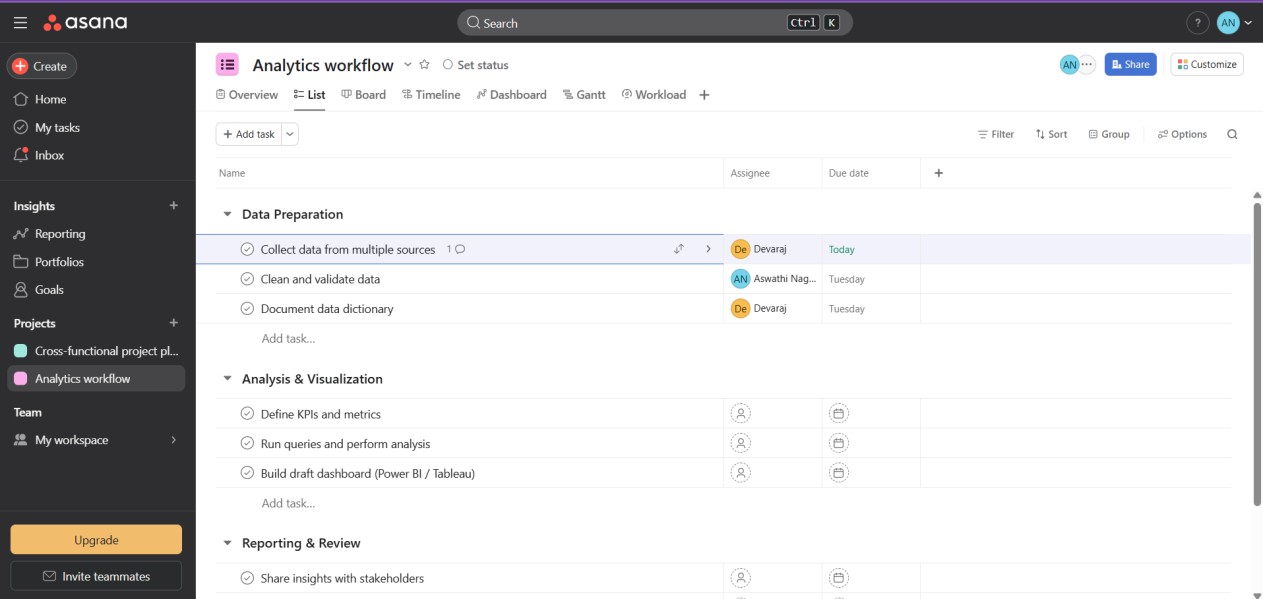
The Timeline View Limitation
One of my main expectations was to use Asana’s Timeline View, which visually displays how tasks are connected — similar to a Gantt chart.
However, I discovered that this feature is not available in the Free version. It’s reserved for premium users.
In my opinion, it would be very helpful if Asana could provide Timeline View access for a limited number of projects in the Free plan.
This would allow individuals and small teams to understand the value of this feature before deciding to upgrade.
![Best Asana Integrations & Apps 2025 [Management & Productivity]](https://res.cloudinary.com/dnnkn2mtj/image/upload/v1782888846/ibtwebsite/blogs/awsqaxhfbte8g3zg7a0x.png)
What I Liked Most – The Collaboration Experience
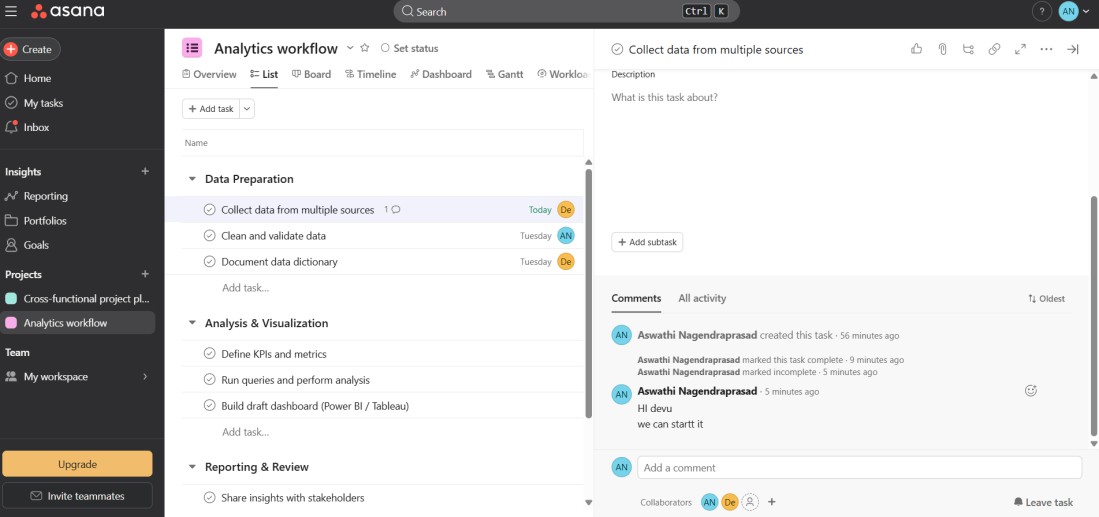
One of the most impressive aspects of Asana is its collaboration module.
Even if a task is not directly assigned to a particular team member, everyone can still
collaborate by adding comments, feedback, or decisions related to the project.
This flexibility is very effective when managing shared responsibilities — especially when project decisions need to be discussed quickly.
I also found the notifications and update feed particularly helpful. Whenever a comment is added or a status changes, Asana notifies team members instantly, ensuring nothing is missed.
This real-time update system makes it easy to maintain coordination even in fast-paced projects.
Additional Features I Explored
While working with the free version, I explored various sections and found a few features that stood out:
- Task Management: Simple and easy-to-use interface for creating and tracking
tasks with start and due dates.
- Project Overview: Offers a clean dashboard summarizing ongoing activities.
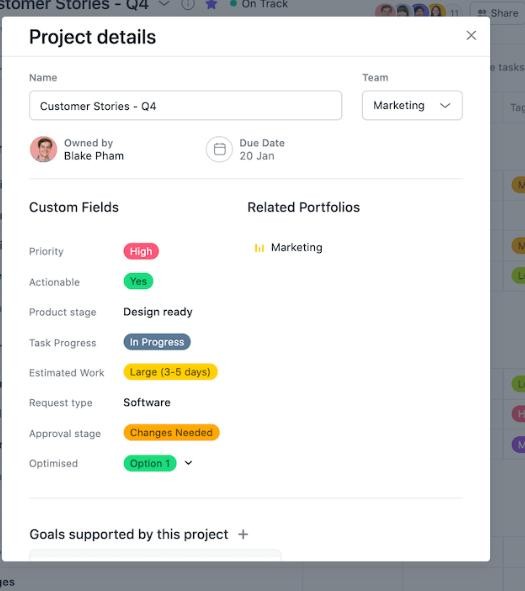
- Custom Fields (Premium): Allows adding labels like priority or status for deeper insights.
- Comments G Mentions: Enables direct communication with teammates under each task.
- Integration Options: Easily connects with apps like Google Drive , Slack, and Outlook.
My Observations and Suggestions
After experimenting with Asana, here are a few personal observations:
- User Interface: The design is minimalistic, well-organized, and ideal for beginners in project management tools.
- Team Collaboration: Comment threads and task-based communication reduce the need for long email chains.
- Reporting Limitations: The free version lacks advanced reporting and visualization options, which might limit data-driven tracking.
- Timeline Access: As mentioned, adding timeline access for limited projects in the free version could increase usability and attract more long-term users.
How Asana Compares with My Organization CRM (Greenestep) and HubSpot
Since I’m already familiar with Green Step and HubSpot, I compared Asana’s performance with both:
- My Organization CRM (Greenestep) focuses on business analytics and CRM integration, providing deeper insights into project performance through dashboards.
HubSpot excels in marketing automation and client management.
- Asana, on the other hand, offers a clear advantage in task-level collaboration and team visibility, especially when managing internal projects and workflows.
Each of these platforms plays a unique role — and Asana could serve as a lightweight, easy-to-use companion tool for internal coordination.
Use Case 1: Task Management and Team Coordination Example:
At I-BACUS-TECH, we often handle multiple college training programs simultaneously — such as sessions on Power BI, Data Analytics, and Python.
Using Asana, each training program can be created as a separate project. Under it, we can list tasks such as:
- “Prepare presentation deck for Day 1”
- “Send email invites to students”
- “Coordinate with college lab assistants”
- “Collect student feedback forms”
Each task can be assigned to specific team members (e.g., Selva for invites, Kiran for materials, Aswathi for coordination). Team members update their task status to In Progress or Completed, and everyone stays aligned without long chat threads or repeated reminders.
This makes it easy to see what’s done, what’s pending, and who’s responsible — all in one place.
Use Case 2: Tracking Timelines and Dependencies Example:
During software development projects, tasks are often interdependent — for instance:
- Task 1: UI Design → must finish before
- Task 2: Frontend Development → which must complete before
- Task 3: API Integration
In Asana, these dependencies can be visualized in the Timeline View (similar to a Gantt chart). This helps project coordinators see if any task delay might push the entire project deadline.
Although the Timeline feature is part of Asana’s premium plan, even in the free version, teams can simulate it using start and due dates, or by switching to the “Calendar” view.
At I-BACUS-TECH, for example, when planning internship dashboards, using the calendar helped us monitor which project modules were running late and adjust the schedule accordingly.
Use Case 3: Reporting and Insights Example:
After every training or internal project, our team reviews progress and feedback. Using Asana’s Project Overview and Task Completion Summary, we can quickly check:
- How many tasks were completed on time
- Which ones faced delays
- Comments or observations shared by team members This gives a snapshot of team productivity.
For instance, after a college workshop, we could easily export task data (like “materials uploaded,” “certificates printed,” “feedback received”) and convert them into simple dashboards using Power BI or GIFT (Greenestep Interactive Forecasting Technology tool used by our company for Analytics) for reporting purposes.
While Asana’s free version doesn’t include detailed reports, this manual export option helps maintain transparency and evaluate overall performance.
to be continued…